
Track Browser
The track browser is your main Lexicon screen where you can view and edit all your tracks. Click any field twice to edit it.
Editing in more detail or with Recipes can be done by right clicking any track and choosing Edit.
Keyboard Controls
Tab: Jump to the next field of the current track
Cmd or Ctrl + Home: Jump to the first field of the current track
Cmd or Ctrl + End: Jump to the last field of the current track
Cmd or Ctrl + Arrow Up: Jump to the same field of the track above
Cmd or Ctrl + Arrow Down: Jump to the same field of the track below
Visible Columns
You can enable more visible columns by right clicking any column header.
Status Icons
The status column at the start of each row shows a few small icons. Hover over an icon to see what it means.
File
- Orange warning triangle:
File not found. The track is missing, see Find Lost Tracks. - Exclamation mark:
File not found, but streamable from cloud. The file is missing on this computer but it can still be played from Cloud Storage. - Moving bars: the track is playing right now.
Analysis and cues
Analyzed: the track has a beatgrid.Analyzed & has cue points: the track has a beatgrid and cue points.Has cue points: the track has cue points but no beatgrid.Archived: the track is in the archive.- A spinning icon means the track is being analyzed, a queue icon means it is waiting to be analyzed.
Cloud and streaming
Uploaded to the cloud: the file is stored in Cloud Storage.Queued for upload: the file is waiting to be uploaded.Not backed up: the file is not in Cloud Storage.Streaming file: the track is a streaming track (for example Beatport or TIDAL).
Track Previews
You can show a waveform preview for each track. These previews are clickable and will play the track instantly, by default for 10 seconds. You can change this in the settings. Pressing the ESC button will also stop the preview.
Waveform previews are generated automatically when you play a track or when you analyze them with the "Waveform" checkbox enabled. If you change your waveform colors in the settings, you will notice your waveform previews do not change. You need to re-analyze them for those to update.
You can safely run the waveform analysis on your entire library, it will only add or update waveforms if they are missing or if you changed the colors.
Compatible Key
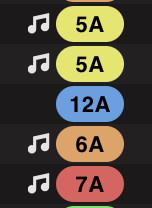
When a track is loaded in the music player, Lexicon will display harmonically compatible keys in the track browser with a white music symbol.
You can change how the compatible key is calculated in the Lexicon settings. You can choose the following:
Harmonically Compatible ➡ Traditional harmonic mixing rules, e.g. 10m ➡ 11m or 10m ➡ 10d, etc.
Fuzzy Key Mixing ➡ Expanded compatibility based on adjacent open key numbers, e.g. 10m ➡ 9m/9d or 10m ➡ 11m/11d, etc.
Global Search
To quickly find a track, playlist or action anywhere in Lexicon, use Edit ➡ Find in the top menu bar (by default Cmd or Ctrl + F). Start typing to find actions. Press Tab to search your tracks and playlists instead.
Searching
To search in the track browser, hover your mouse over one of the column headers, e.g. TITLE. This way you can search in every column, or multiple columns at a time. Searching ignores accents and capitalization.
You can use the special keyword None in any filter to find tracks that do not have a value for that field.
In number fields like BPM or Energy you have a few extra options:
| Operator | Example | Notes |
|---|---|---|
> |
> 150 |
Greater than |
< |
< 150 |
Smaller than |
>= |
>= 150 |
Greater than or equals |
<= |
<= 150 |
Smaller than or equals |
- |
120-150 |
Between |
! |
!150 |
Not |
Searching Keys
Keys are automatically converted when you search. For example, when you search for 4M, it will show tracks that have the key Am since these two keys are the same but in a different format.
Searching Dates
You can search in date fields (like Last Played) by using the YYYY-MM-DD format, for example: 2022-04-10.
You can also use the > and < operators here (see above table).
Searching Custom Tags
You can only search for full custom tag labels. Any partial match will not give any results. This is for performance reasons to make sure the track browser is always very fast.
You can start your search with a tilde ~ to make all tags required instead of just one tag.
Examples:
Techno, House ➡ this will match any track that has Techno OR House
~House, Vocals ➡ this will match any track that has both House AND Vocals
You can start each custom tag word with an exclamation mark ! to negate it, so that custom tag must not be on the track.
Examples:
!Techno ➡ this will match all tracks WITHOUT Techno
!Techno, !House ➡ this will match all WITHOUT Techno OR WITHOUT House
You can even combine them, here are some complex examples:
~Techno, !Vocals ➡ this will match any track WITH Techno but must NOT have Vocals
~!Techno, !Vocals ➡ this will match any track WITHOUT Techno AND WITHOUT Vocals
Sorting
You can sort by any column by clicking the drag handle when you hover over a column header.
Sorting by the # column will put your playlist in the original order.
With the Remember table state per playlist setting, Lexicon remembers the scroll position, sorting, filters and selected tracks for each playlist when you switch between playlists.
Custom Tag Sorting
Custom Tags are sorted by amount of custom tags that each track has.