Convert your library to Serato

What does Lexicon DJ do?

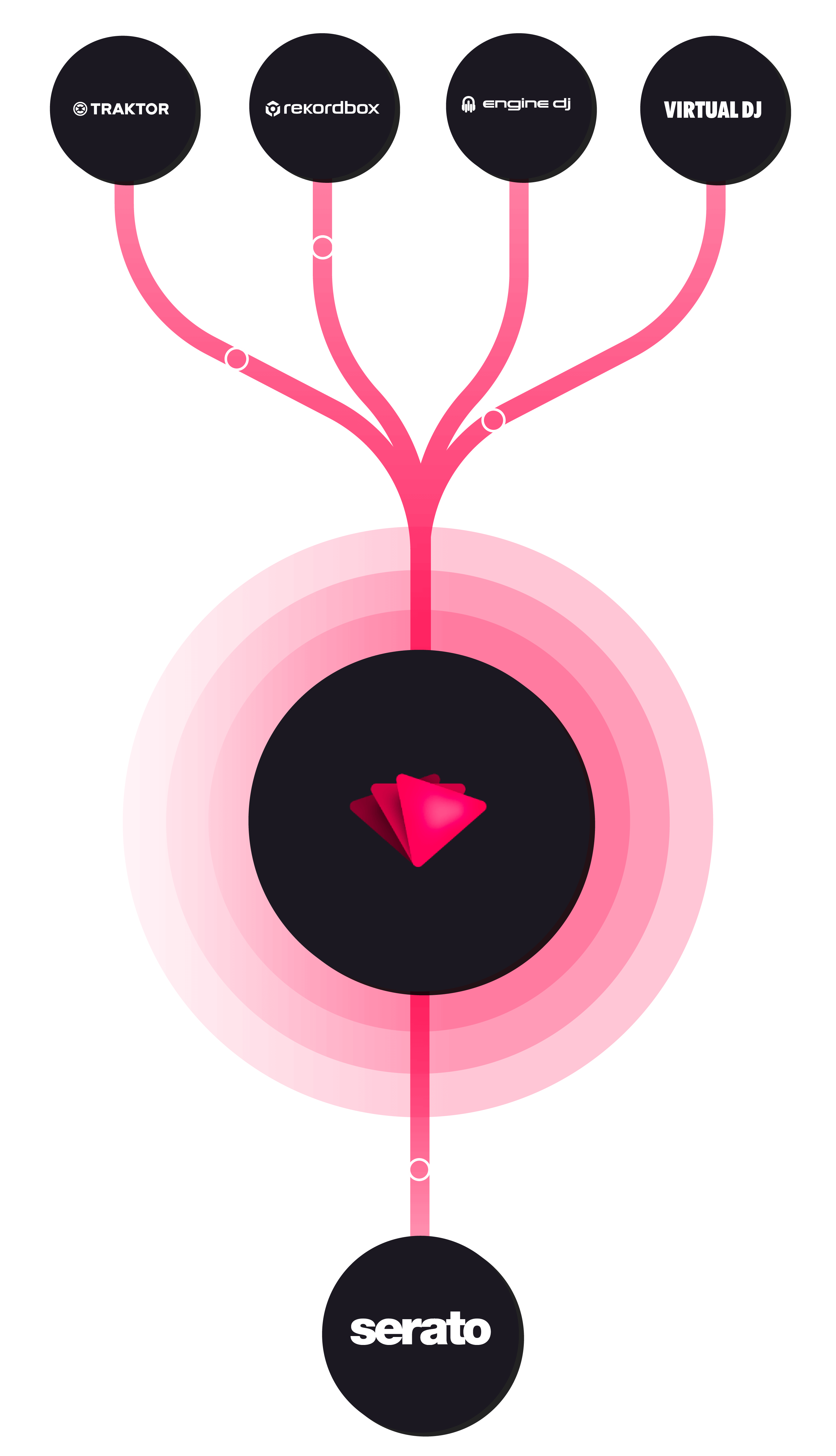
If you've built up a collection of music tracks in one DJ software but want to switch to another, Lexicon DJ can help you do that without losing all your carefully crafted cue points, loops, and playlists. It acts like a translator between different DJ software languages.

So, for example, if you've been using Serato but want to move to Rekordbox, Lexicon DJ can take your Serato library, with all its specific data, and convert it into a format that Rekordbox can understand, saving you the headache of having to recreate your setup from scratch.

What gets converted to Serato?

Lexicon DJ preserves as much data as possible when converting to Serato. Here's what transfers over:

  • Playlists (crates) — your playlists are converted to Serato crates with the full folder structure.
  • Cue points & loops — hot cues are converted with their colors and labels.
  • Beatgrids — your beatgrid adjustments carry over.
  • Track metadata — titles, artists, genres, BPM, key, comments, ratings, and custom tags.
  • Album artwork — embedded artwork is preserved.

Conversion limitations for Serato

  • Serato FLIP is not currently supported.
  • Serato 3 does not support streaming tracks (Beatport, Tidal, etc.) in crates. If your playlists contain streaming tracks, they will not show up in Serato 3. Serato 4 does not have this limitation.
  • If you use streaming tracks, make sure the correct streaming service is enabled in the Serato settings, or those tracks will not appear.
  • Serato allows tracks directly inside playlist folders. Other DJ apps and Lexicon DJ do not support this, so any tracks placed directly in a folder (not in a crate) will not be visible after conversion.

How to convert

Step by step

Converting your DJ library to serato is very easy, just follow these steps.

  1. Make sure both your DJ apps are fully closed.

  2. Open Lexicon.

  3. Go to the Sync page.

sync page

  1. Click the Import tracks & playlists button at the bottom.

import button

  1. Choose your current DJ app. Lexicon should automatically detect the database.

import dj app dropdown

  1. Make sure Full is selected so your entire library is imported.

full import option

  1. Click Start importing in the bottom right corner.

start importing button

Now your entire library will be visible in Lexicon. That was part one of the process. The second part is to sync your library to serato.

  1. Go to the Sync page again. This time we stay there and don't proceed to the import page.

sync page

  1. Choose serato. Lexicon should automatically detect your serato database.

sync dj app dropdown

  1. Make sure Full is selected and leave the other options on their defaults.

full sync option

  1. Click Sync to serato in the bottom right corner.

sync button

After the process is complete, your DJ library will be fully converted to serato.

All your playlists, tracks, cues, beatgrids and other tags will all be there.

Pricing

30 day money-back guarantee
Free
Full library conversionSupports all DJ appsCommunity support
Free
No credit card required
Ultimate
Best Value
Everything in Essential+ All advanced features+ Priority support+ Cloud Database Backup+ 10,000 Cloud Storage Tracks
Per month
Click to switch
Essential
Everything in Free+ Track & playlist editing+ iOS & Android app+ 1,000 Cloud Storage Tracks
Per month
Click to switch

Unlimited* Cloud Storage

Add-on
Non-refundable

Store all your music files securely in the cloud.
Never lose your music again.

Per month
Available during checkout
*Subject to fair use policy. See our Terms for more information.